
Power Hub – instructions
On this page, you will find instructions for getting started with Power Hub, guidance for troubleshooting, and answers to frequently asked questions regarding the use of Power Hub and Vaasan Sähkö’s Smart Home.
Power Hub – LED indicators
Power Hub uses different LED indicator sequences to indicate its status. Read more below about the different sequences and what they mean.
No light
- Description: No light is on.
- Meaning: Power Hub is either turned off or currently turning on. It can take up to 60 seconds for it to turn on.
- What to do:
- Check that Power Hub gets power through the HAN port or via an USB-C (if the model is compatible).
- Wait for up to one minute to see if a LED indicator switches on.
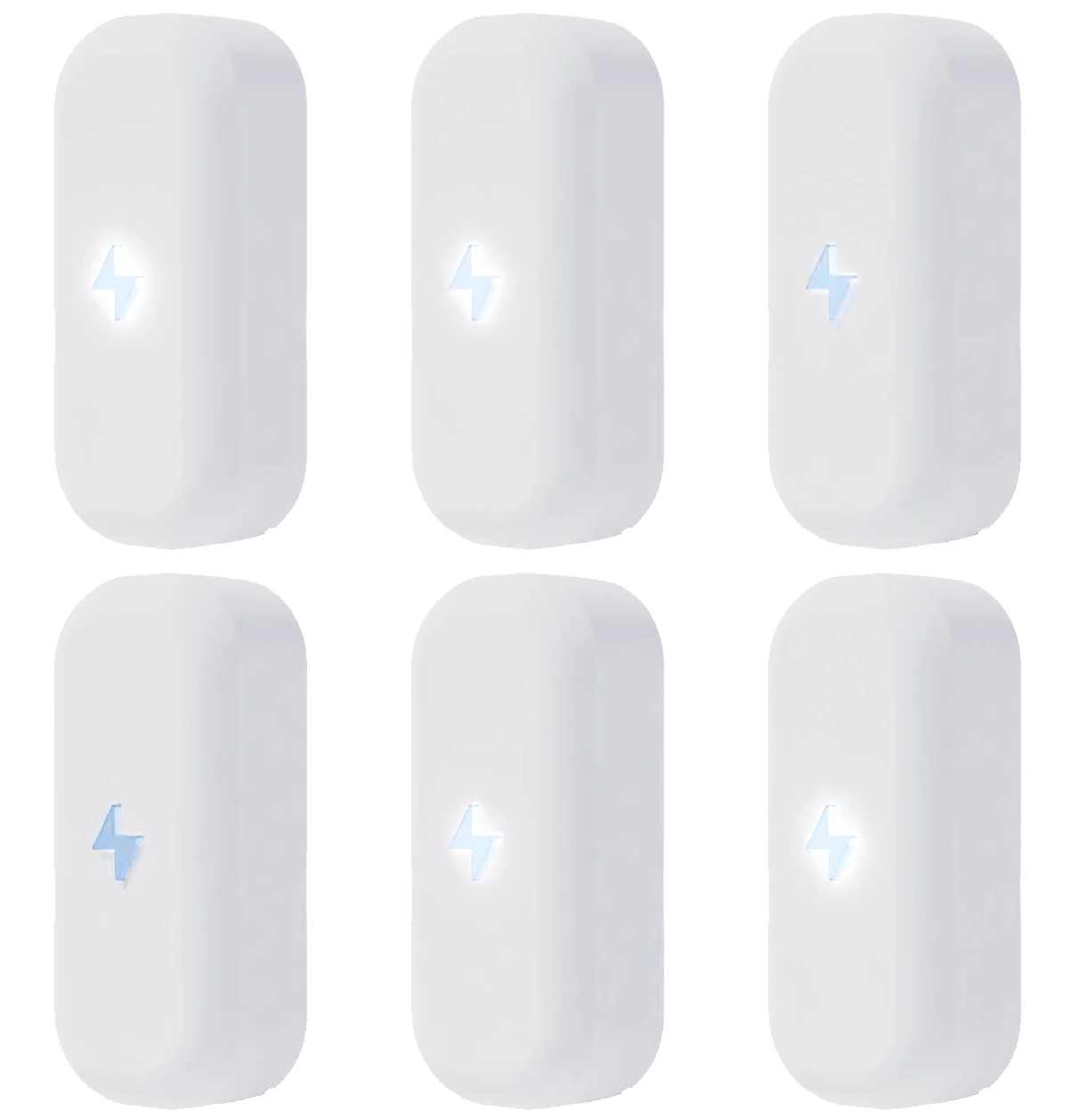
Dimly pulsating white light
- Description: White light fading in and out.
- Meaning: Power Hub is not yet configurated.
- What to do:
- Configure the device in the app.
Rapidly blinking blue light
- Description: Blue light is blinking rapidly.
- Meaning: Power Hub is in provisioning status and waits for the user to connect it via the app.
- What to do:
- Open the app and follow the instructions for configuration.
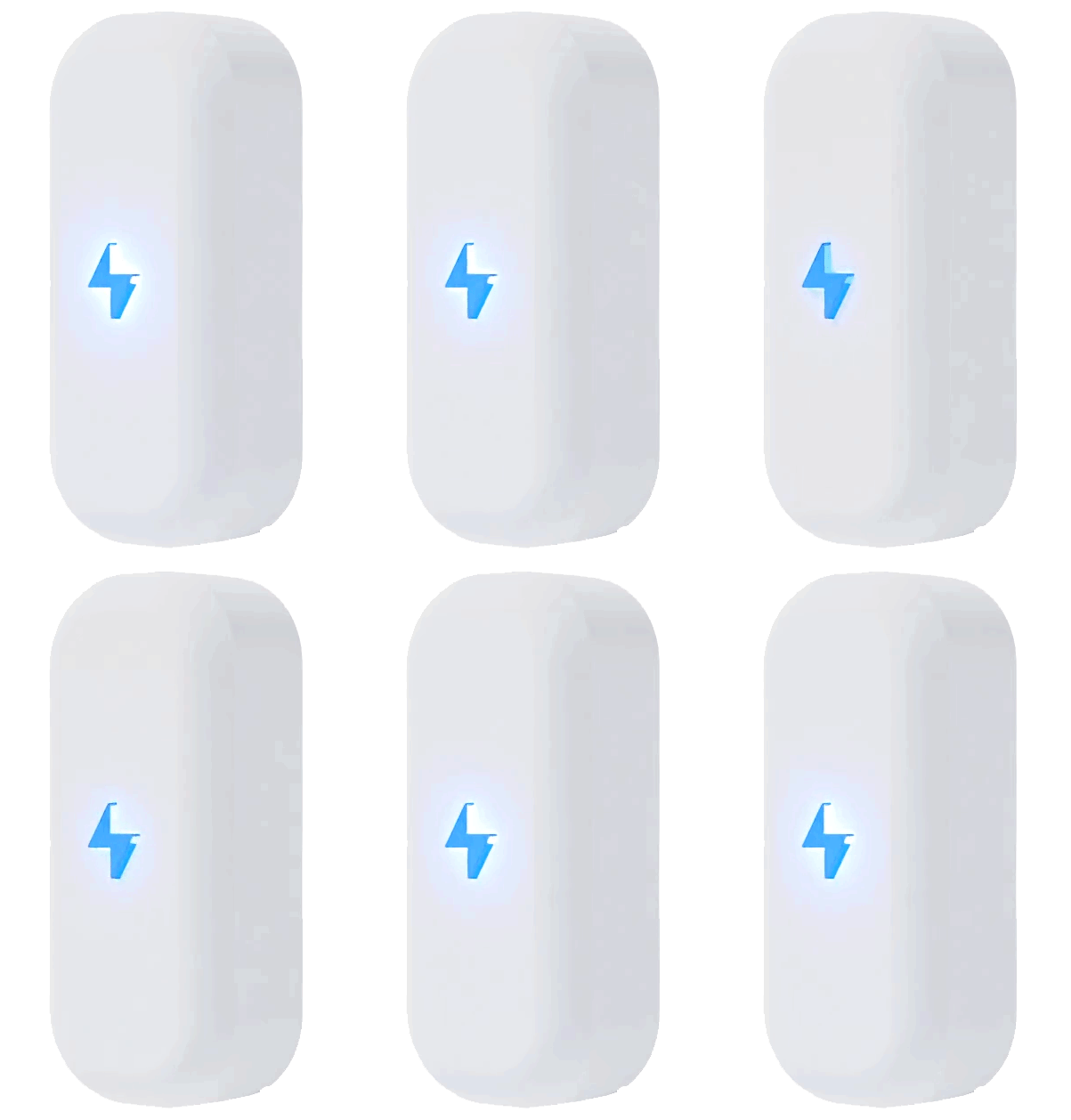
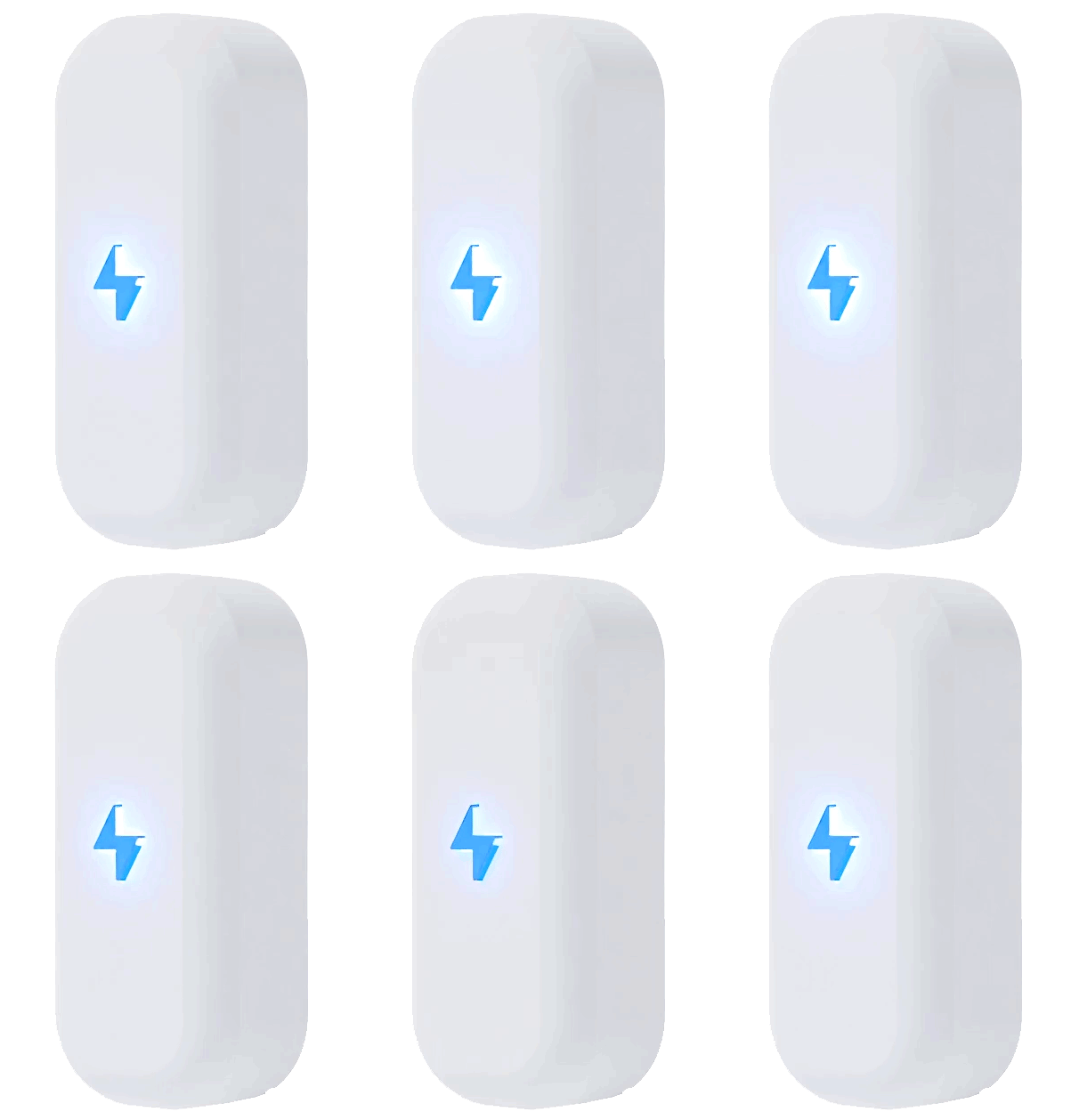
Dimly pulsating light blue
- Description: Blue light fades in and out but no data is received.
- Meaning: Power Hub is connected to Wi-Fi but doesn’t receive data from the electricity meter.
- What to do:
- Check that Power Hub is correctly connected to the HAN port in the electricity meter.
- Make sure that the HAN port is activated. Your local electricity network company can activate it.
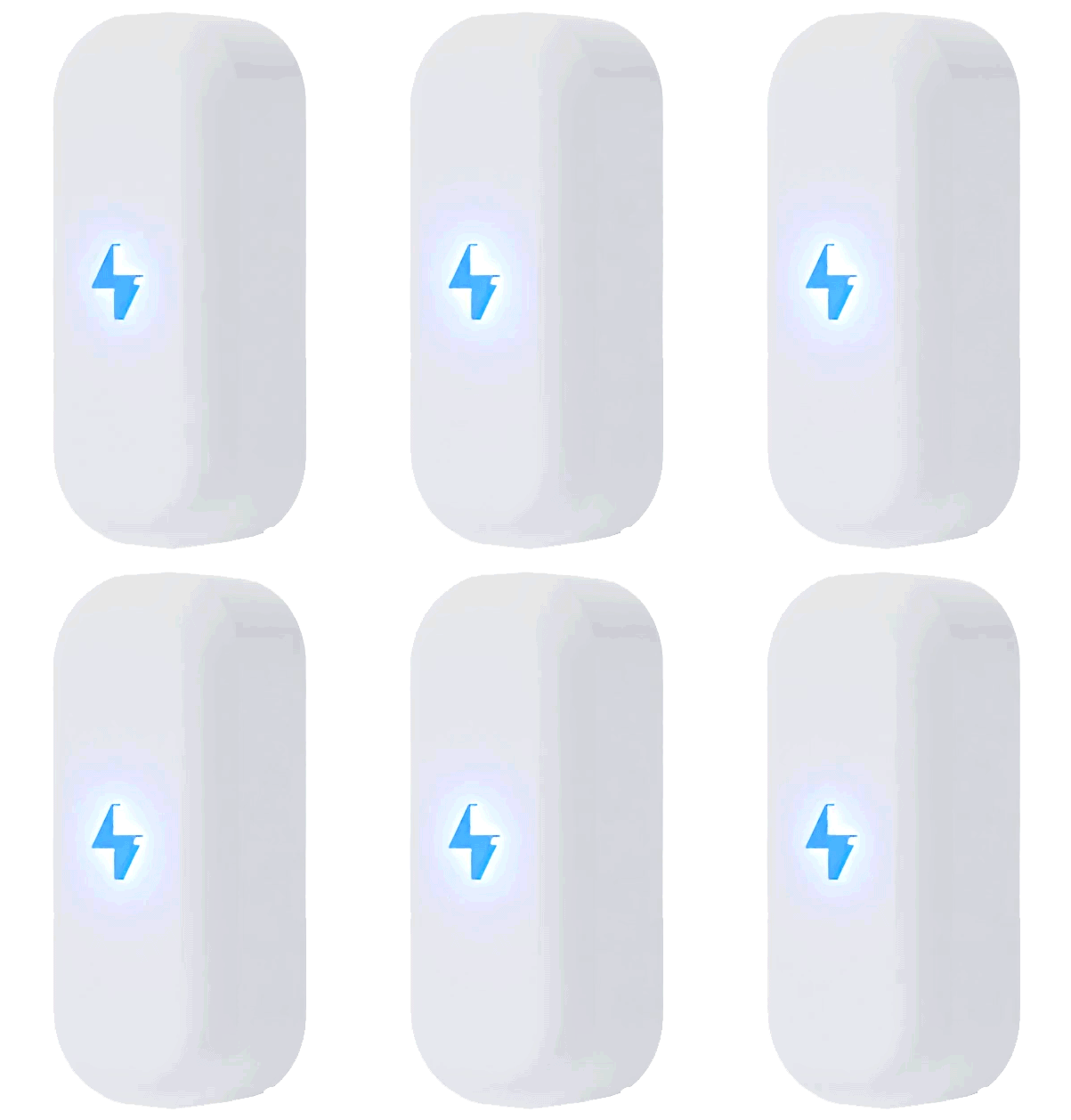
Pulsating blue light that blinks three times every 10 sec
- Description: A pulsating blue light blinks three times approximately every 10 seconds.
- Meaning: Power Hub is connected to Wi-Fi and receives data.
- What to do:
- You don’t need to do anything. Everything is functioning as it should.
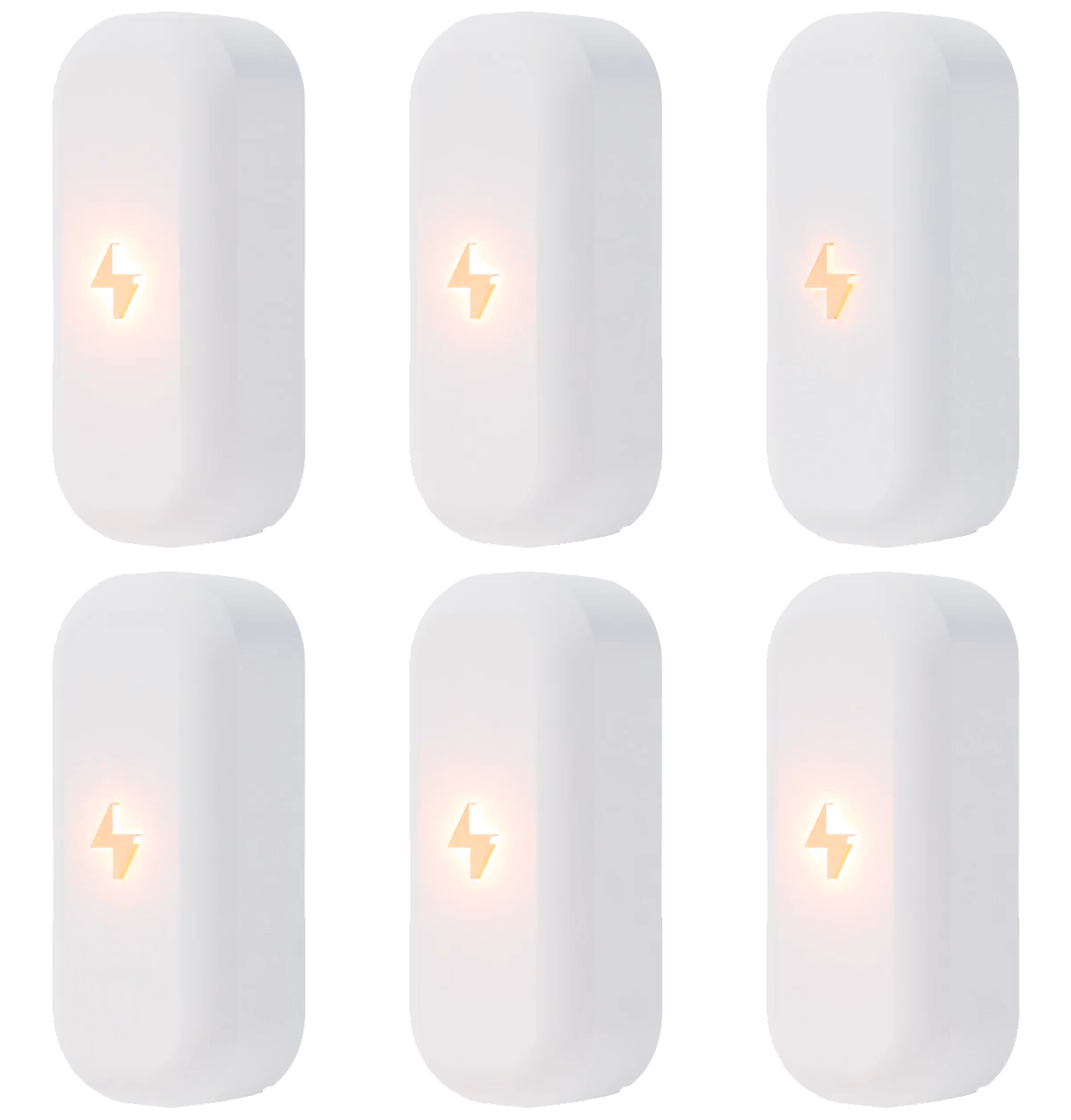
Blinking orange light
- Description: Orange light is blinking.
- Meaning: Power Hub has lost connection to the internet.
- What to do:
- Check that the Wi-Fi router is working properly and that internet is not down.
- Check your Wi-Fi password and try switching the router off and on.
- Make sure that your Wi-Fi is in the 2.4 GHz bandwidth.